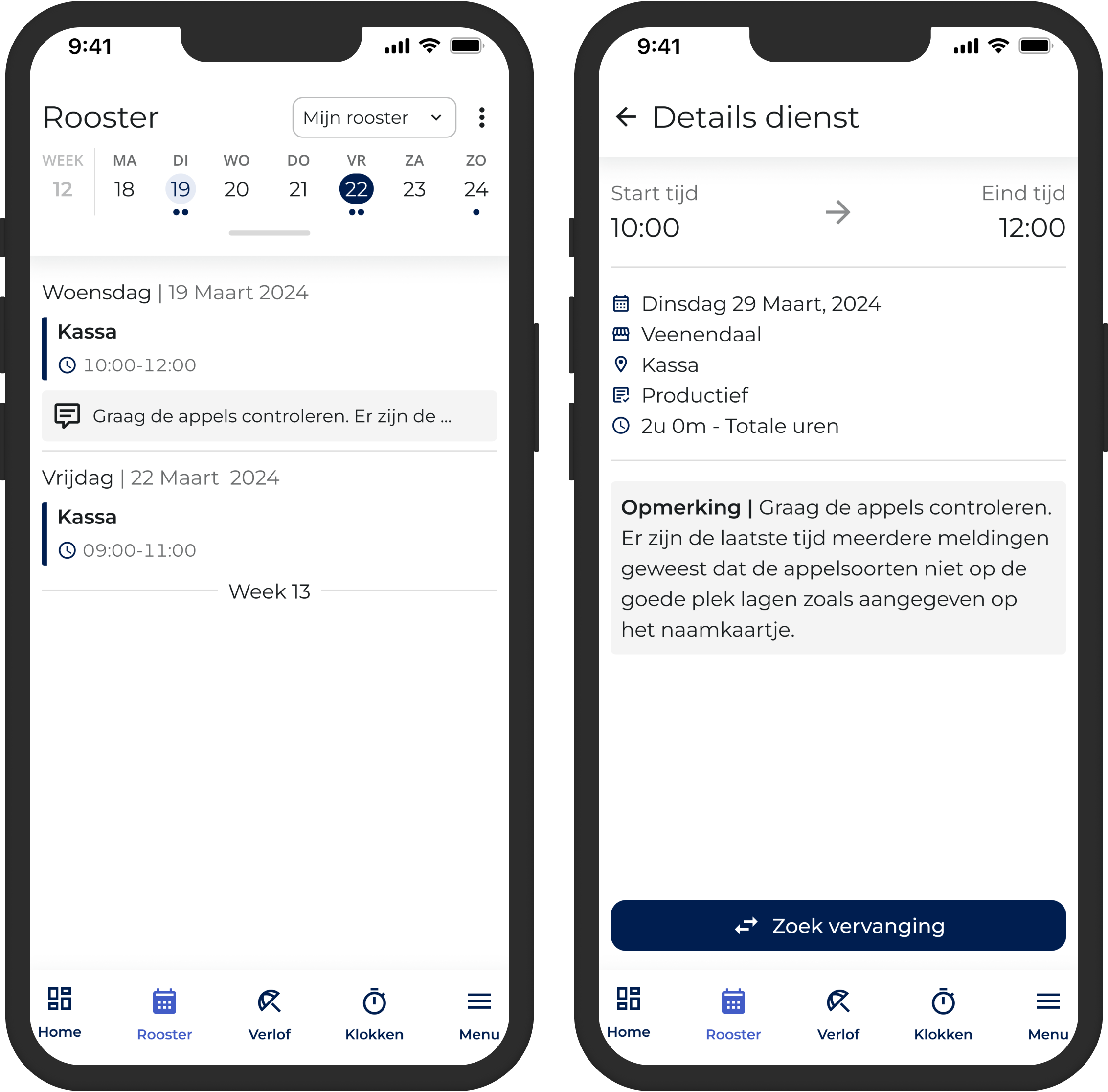
Would you like to inform an employee in advance what is expected of him/her on his/her shift? This can be done by adding a comment in the schedule, which then becomes visible in the employee's Job App.
Add note
A comment can be added in the detail screen in the roster of the employee in question. You open this detail screen by double-clicking on the day in question in the departmental roster.
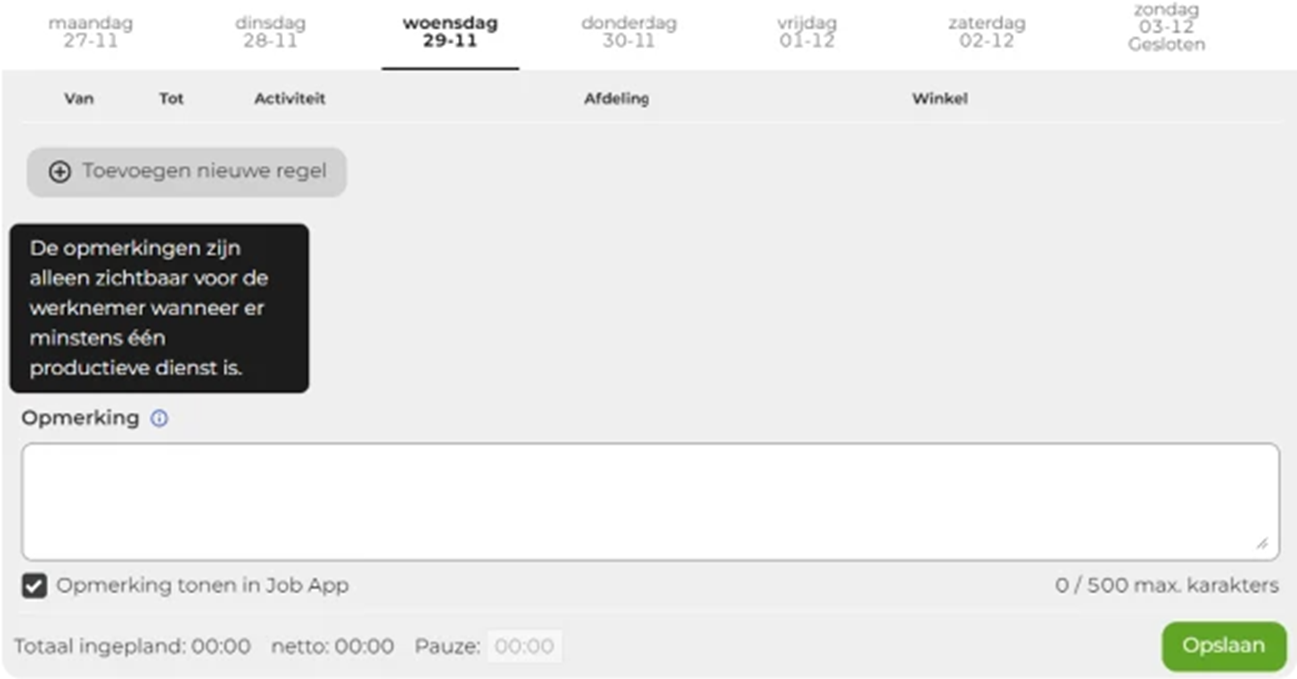
You can enter a comment in the text field, which will be saved once you click "Save."
Please note that the checkbox next to“Show comment in the Job App” is checked by default. If you add a comment that you don’t want to appear in the Job App, you’ll need to uncheck this box.
Comments are only shown in the Job App if there is at least one productive shift or indirect task rostered for that employee on that day. Is only training, leave or illness registered? Then the comment will not be shown in the Job App.
In addition, it is only possible to post comments for employees from your own store. For employees hired from another store, comments are not shown in the Job App.
The result
After you save the comment, it immediately becomes visible in the roster and employees see the comment again in the Job App.